jcifs.util.transport.TransportException java.io.IOException: Invalid payload size: 254
Sunday, November 8, 2009
jCIFS TransportException: Invalid payload size: 254
Monday, April 27, 2009
Controlling Your Home Web Server Content Remotely Using Dropbox

- Send the files to each person using an IM client Cons:
- The receiver would need to be competent enough to understand what to do with the files I was sending
- I'd have to send the files to each person
- The other person needs to be online at the time
- Not every workplace allows IMs
- Resuming broken downloads isn't usually possible
- Use VNC to connect to my home machine and then put the updated content in the web server folders Cons:
- It's a slow and tedious process over VNC
- Doing this over and over for small changes is a major pain
- Not every workplace would be setup to use VNC
- Wait until I got home Cons:
- I'd have to wait
- I'd have to remember to take the files home with me (I always forget!)
All of these are pretty viable options but where's the geek cred? Alright, so VNC does have some but still, it's painful for regular use over a slow connection. I have been using Dropbox, which is an awesome service. It's free, painless to setup and so simple, even your most technophobic friends will be able to use it. So I figured that if I could setup a way to update my web server using Dropbox, I'd be in business. The easiest way to do that would be to move my web server installation into the Dropbox folder but that would be overkill. I didn't need the complete web server setup to be shared and synced, only one particular webapp I was running on it.
Now there's this concept of vHosts, wherein a single physical server can host multiple websites. For example nogoodatcoding.com and nogoodatcoding.org could both be on the same server but that would not be readily apparent to a visitor. Most modern web servers should support vHosts - Tomcat and Apache certainly do. The one that would probably be more commonly used is name-based and that is what is used in the instructions below.
So coming to the crux of this post - you can simply add a vHost to your web server and point it to a folder inside your Dropbox home and voila! You have complete control over the content you're hosting!
Here's how you can do it for Tomcat:
- Browse to $CATALINA_HOME/conf and edit server.xml.
- You'll find a block of code that defines the default vHost - localhost:
<Host name="localhost" appBase="webapps" unpackWARs="true" autoDeploy="true" xmlValidation="false" xmlNamespaceAware="false">
You can leave this untouched. - Add another host, something like
<Host name="myDynDNSHostNameForDropbox.dyndns.biz" appBase="c:\\My Dropbox\\My vHost Content" unpackWARs="true" autoDeploy="true" xmlValidation="false" xmlNamespaceAware="false">
- Restart the server and you should be good to go.
You can find more about configuring Tomcat for vHosts at the official website: Virtual Hosting and Tomcat
For doing the same with the Apache Web Server (version 2.2; for older ones you should locate the appropriate documentation and tutorials):
- Edit your httpd.conf and uncomment the line for virtual hosts:
#Include conf/extra/httpd-vhosts.conf - Edit conf/extra/httpd-vhosts.conf and set it to something like:
NameVirtualHost *:80 #This will maintain your current configuration for all names except the second vHost <VirtualHost *:80> ServerName localhost #This is the relative path to the htdocs directory DocumentRoot htdocs </VirtualHost> #This vHost will answer for requests to myDynDNSHostNameForDropbox.dyndns.biz <VirtualHost *:80> ServerName myDynDNSHostNameForDropbox.dyndns.biz #The absolute path to the directory for this hosts content DocumentRoot "c:\\My Dropbox\\My vHost Content" </VirtualHost> #This apparently is required for overriding the default security; otherwise you'll be denied access <Directory "c:\\My Dropbox\\My vHost Content"> Order Deny,Allow Allow from all </Directory>
- Restart the server and you should be good to go.
I'm not really an Apache user, I tend to stick with Tomcat. I got this information from the offical Apache docs: Virtual Hosting with Apache, Name based virtual hosting with Apache and this great tutorial on Apache Virtual Hosting.
Once you've set this system up, you'll be able to simply modify files in your locally synced folders under Dropbox and the changes will be reflected in a few moments on your home webserver! You could use this to put up pretty much anything on your webserver - a photo you just clicked at work, a document you want to put up to share with a friend or even some collaborative work on one single webpage or anything else!
Friday, March 6, 2009
Linking PayMate To Your ABN AMRO Bank Account
Recently, in my ABN AMRO netbanking account, I noticed a link that read Click here to register for payment service through Mobile 'PAYMATE' [sic]. This sounded interesting since, usually, I'd come across stuff on the online shopping sites that cost just a little bit more than my coupon was worth. Or there'd be extra charges for shipping. I figured that if I could associate my bank account with PayMate (for example, with PayPal, you can add additional sources but the money in your PayPal account gets used up first. So you never run out of funds, but you also don't end up with a trifling balance in your PayPal account), then I'd be able to tap into those funds for the remainder of any purchase requirement, over and above the coupon value.
I needed to confirm this of course, so I called up ABN AMRO's customer care helpline. Not a very good idea. Those people weren't clear on what PayMate was themselves and even when I tried to make them understand that I had been using PayMate for over a year and I knew what it was, they insisted on trying to explain the PayMate service to me. Sigh!
Now don't get me wrong, the representatives are usually pretty helpful and I do like ABN AMRO's service. Except in this case, they had no idea about it and had probably not been trained well enough on the topic. Anyway, I'd read somewhere that instead of venting your ire on some poor phone jockey, who probably wouldn't be able to do anything about it anyway, and spoiling your and his/her day, it's better to say 'thank you', put the phone down, and dial in again, hoping you get someone better equipped to help you.
I tried that but to no avail. The next day, I called up PayMate directly and, finally, someone was able to tell me how this thing would work. So here it is, what you've (hopefully) been reading this post for - how would you use your ABN AMRO account with your PayMate account? How will it work?
Your phone number is your PayMate id, of course. For every bank account (or other source of funds) linked to PayMate (they plan to add others later), you will get a new PIN. This is in addition to the PIN you may have for your original PayMate account (if you do have one). When you make an online transaction, the PIN you authorize the transaction with will determine which source of funds is utilized.
So there is no question of using up any one source first and then seamlessly switching over to the next preferred source. The source you pick must have sufficient funds.
Too bad. I was hoping for a PayPal like model, I'd probably have used PayMate more often then. They just might introduce this feature though so it's probably good to wait and watch.
Wednesday, February 25, 2009
Using A Virtual Credit Card WIth PayPal - Not Possible Anymore
Anyway, I had an HDFC account and I'd signed up for the NetSafe cards facility. So I also signed up for PayPal and registered a virtual card. Now PayPal had (has?) this thing where your account needed to be verified. A certain amount of money ($1.95 at last check) is deducted from your card and the transaction details have a 4 digit pin (which appears immediately in the transaction details for the virtual card) which you then need to enter in a form in PayPal to prove that you indeed own the card and are not running some sort of scam. After this account verification, you were free to use your card for further transactions. Except that I registered a virtual card which was now invalid after the verification transaction. So I generated another card and added that to my PayPal account and I was good to go.
Yesterday, I was trying to buy a new domain name. I tried doing the same thing I'd done earlier but my transaction kept getting declined. On closer inspection, I saw that PayPal was now asking me to verify my card! This meant that every card you now add to your PayPal account needs to go through the verification process. Which spells doom for virtual card users since the card would be invalid after the verification transaction!
I'm not quite sure when or why this happened, I'm not a frequent user of PayPal; I only registered because GoDaddy, my registrar, had the option for payments via PayPal and PayPal could be used with virtual cards. Well, not anymore! Finally, I ended up registering my actual credit card (luckily for me, I'm also subscribed to alerts via SMS so I received my transaction code almost immediately, instead of having to wait for a couple of days for it to show up in my online transaction list) and using that to make my purchase.
Thursday, February 19, 2009
Folder2Feed
It's a Java application that can be configured to monitor a folder and generate a feed (RSS or Atom) of the newest files in that location. It's still work in progress but the basic command line interface version is out. I plan to add a GUI to it soon, work permitting, of course. There are also some other features that I think should be there and I'll be working on them. If you have any suggestions for features, consider leaving me a comment here or on the bug tracker (choose feature request under Type and if possible, leave your email id so I can get back to you if needed).
If you find any bugs, do report them, I'd like to make Folder2Feed better.
For any feedback, mail me at folder2feed[AT]nogoodatcoding[DOT]com (replace [AT] and [DOT] with the appropriate symbols).
Wednesday, February 11, 2009
Unhandled Win32 Exception Crashes Firefox After Installing Microsoft Visual Studio 2005 (Just In Time Debugger)
An unhandled win32 exception occurred in firefox.exe
I Google'd it and I came across this page on the Firefox support forum. None of the suggestions really worked for me but here's what did:
- I started Firefox in safe mode
- In the dialog that came up, I chose to disable all add-ons (you could also Continue in Safe Mode to first check if Firefox does start up and then disable add-ons from there)
- I started Firefox in 'normal mode' and it worked.
- I then re-enabled each plugin, one by one, to determine exactly which one was causing the problem.
- In my case it turned out to be the QuickTest Professional 9.5 Plugin. These other plugins didn't seem to bother VS 2005:
- DOM Inspector
- Firebug
- Free Download Mananger plugin
- Google Toolbar for Firefox
- IE Tab
- Java Quick Starter
- Live HTTP Headers
- Modify Headers
The other suggestions in the forum said to disable the JIT debugger (doesn't really help, all it does is bring up a dialog saying that no debugger was found!), make a new profile/ reinstall ( I suspect that if this works, it's probably because all the plugins are removed ) and for a couple of people, the problem was with AVG Safe Search/ Search Shield.
So YMMV but this is what worked for me.
Thursday, July 31, 2008
Running Two Tomcat Service Instances On The Same Machine
II. HKEY_LOCAL_MACHINE\SOFTWARE\Apache Software Foundation\Procrun 2.0\Tomcat6
III. HKEY_LOCAL_MACHINE\SOFTWARE\Apache Software Foundation\Tomcat\6.0
IV. HKEY_LOCAL_MACHINE\SOFTWARE\Microsoft\Windows \CurrentVersion\Run
V. HKEY_LOCAL_MACHINE\SOFTWARE\Microsoft\Windows \CurrentVersion\Uninstall\Apache Tomcat 6.0
VI. HKEY_LOCAL_MACHINE\SYSTEM\CurrentControlSet\Enum \Root\LEGACY_TOMCAT6
- Install your first instance of Tomcat to, say, C:\Tomcat6_1
- Start > Run > regedit > [ENTER] will bring up the registry editor
- Navigate to key I and rename it from [...]Tomcat6 to, say, [...]Tomcat6_1. This will ensure the next install will not overwrite this key
- You should see the values for this key in the right pane; modify DisplayName from Apache Tomcat to, say, Apache Tomcat 1. This is so that you know which service is which later, in the Services console (Start > Run > services.msc > [ENTER])

- Modify the ImagePath value from [...]//RS//Tomcat6 to [...]//RS//Tomcat6_1. This is the name of the service instance that will be started; we'll need this name later so keep it in mind
- The Enum key under key I has a value 0 which points to key VI. Change the data to reflect the change in the key name that you'll be making later i.e. modify Root\LEGACY_TOMCAT6\0000 to Root\LEGACY_TOMCAT6_1\0000
- Navigate to key II and rename it also; from [...]Tomcat6 to [...]Tomcat6_1. Again, this is to avoid overwriting when installing the second service
- Similarly, modify key III from [...]6.0 to [...]6.0_1. Same reason as above
Navigate to key IV and modify the value (not the value's data) from ApacheTomcatMonitor to ApacheTomcatMonitor_1. This key is for the monitor application; modifying the key will avoid overwriting of the key on the second install and you'll be able to run two instances of the monitor, one for each service
- Now you modify the data of this value; [...]//MS//Tomcat6 to [..]//MS//Tomcat6_1. This is the name of the service that you modified above, for the ImagePath value
- If you want to be able to uninstall both the instances of Tomcat later (recommended!), you need to modify key V and rename it from [...]Apache Tomcat 6.0 to [...]Apache Tomcat 6.0_1. Again, to avoid overwriting of the uninstall information
- I'm not very sure about key VI but I suggest you modify it also. Rename it from [..]LEGACY_TOMCAT6 to [..]LEGACY_TOMCAT6_1
- Restart your system now for the changes to take place
- Once you're sure the current install is working as expected, you can install the second instance of your Tomcat. I installed to C:\Tomcat6_2
- Before you start the second service, you need to change the ports since otherwise it's going to start with exactly the same ones as your first service and throw exceptions and quit. (You could've changed the HTTP listen port while installing) You need to change the HTTP and SHUTDOWN listen ports at least. If either of these is the same or bound to some other process, Tomcat will not start.
- Go to $CATALINA_HOME\conf\server.xml ($CATALINA_HOME refers to the Tomcat install directory)
- Modify the value for <Server port="8005" shutdown="SHUTDOWN"> appropriately
- Ditto for <Connector port="8080" protocol="HTTP/1.1"
- Restart the system and the two instances of the monitor as well as the services should start up with no issues
You can, of course, extend this to any number of services.
Wednesday, July 16, 2008
Making A 2/3-Pin Socket Power Cord For A CN13/CN14 (Standard PC) Power Point
OR Putting An Old UPS To Use
A friend of mine recently lent me an old APC UPS. We figured it'd be enough to power my network switch and my DSL modem, keeping my connection alive.


Tuesday, July 1, 2008
Google Toolbar Flags orkut.co.in As A Web Forgery

I followed the This isn't a web forgery link ( which took me to a Google page, hence my assumption this is a Google Toolbar feature ) and reported the error. But it's ironic that Google's feature would block one of Google's own websites!
Wednesday, June 4, 2008
Hacking The Cisco 7940 IP Phone
Or How To Change The Ringtone And Idle Logo On The Cisco 7940G IP Phone
Quick-Links
- Pre-requisites
- Setup a TFTP server
- Configure the phone to use your TFTP server
- Get the phone configuration data
- Modify the configuration files
- Create a new logo
- Create a new ringtone
- Update the phone
- Notes and troubleshooting
- Samples
- Resources
I then realized that there was more to the device than it would appear and I Google'd around for some hacks. The first few things I came across were that it was possible to load your own ringtones and change the idle logo.
You can save almost all the relevant information by going to http://[your-phone-ip-address] in your browser and choosing the Network Configuration link. You should see a page that looks like:
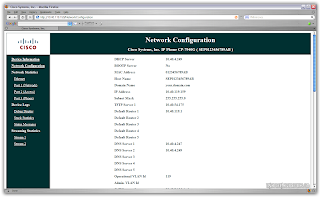
You can save/ print this page for future reference and roll-backs. To get your phones IP address, check under Settings > Network Configuration on the phone.
Pre-requisites
- A Cisco IP Phone - I've got the 7940 model but from what I can tell, these steps should work on other similar ones also.
- A TFTP server - I used the free TFTP server from SolarWinds
- A web server - This applies only if you want to change the logo.
- A utility to convert images to CIP - Again, this applies only if you want to change the logo. And if you don't want to be coding the required files by hand! Cisco provides an SDK that includes these but you need to register on the site ( and you might need to enter contract details, which might not be possible if the phone is at your workplace ). I wasn't able to complete the registration, kept getting session timeout errors so, I'm not sure how/ if this works.
I used the free utilities by Mark Palmer that can be downloaded from http://search.cpan.org/~mrpalmer/Cisco-IPPhone-0.05 - An image editor that supports GIFs and resizing - Again, you'll only need this to create logos. I used Adobe Photoshop but any decent editor should server you well.
- An audio editor that supports creation of RAW audio files - This only applies if you want to be able to create ringtones. I used the trial version of GoldWave; it’ll let you perform 150 commands in a session and up to 2000 commands after which the trial version will expire.
Setup a TFTP server
Your OS probably has a built-in TFTP client ( try typing tftp at the console ) but you'll need a server.

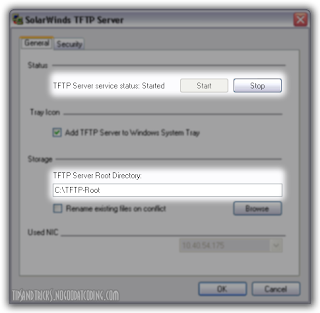
The SolarWinds TFTP server is really simple to use. Simply install and run the application. Choose File > Configure. Modify the options as you see fit. Do note down the TFTP Server Root Directory ( C:\TFTP-Root by default ). Don't forget to start the service!
C:\>tftp Transfers files to and from a remote computer running the TFTP service. TFTP [-i] host [GET | PUT] source [destination] -i Specifies binary image transfer mode (also called octet). In binary image mode the file is moved literally, byte by byte. Use this mode when transferring binary files. host Specifies the local or remote host. GET Transfers the file destination on the remote host to the file source on the local host. PUT Transfers the file source on the local host to the file destination on the remote host. source Specifies the file to transfer. destination Specifies where to transfer the file. C:\>
The command is not very hard to figure out so I'll leave out part explaining how to use it.
Configure the phone to use your TFTP server
- On the phone, go to the settings menu and select Network Configuration. The options are not editable by default so you need to key in the secret password, **#. You should see the tiny lock icon at the top unlock.
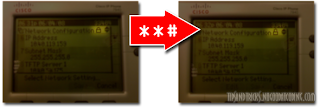
- A long way down in the list of options ( option #32 on my phone ), you'll find the option for Alternate TFTP. You need to set this to YES so that you can change the actual TFTP server address.
- Go back up to the top of the list ( irritating? Yes, I know! But you can key in the option number to speed things up. ) to reach the option for TFTP Server 1. Edit this, type in the IP to your machine and Validate.
Get the phone configuration data
You should now use the original TFTP server ( you did note down the IP address didn't you? ) to get all these files ( use the command line TFTP client built-in to your OS ). Then copy them into your TFTP server root so that your phone can pick them up from there instead. Simple, huh?
Modify the configuration files
Open it in any text editor and look for the tag <idleURL>. This points to the place where the 'screensaver' graphics are picked up.
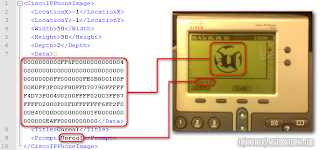
The graphics displayed on the phone are not your usual image files but instead a special XML. You can see how to create the required XML file below. For now, you need to know that you will need to host this XML on a web server on your machine so that the phone can pick it up from there. You can also leave it as it is, the phone will then continue to use the original logo that it had.
I spent almost half an hour trying to debug why an XML hosted on Tomcat was not being used for the logo when I could see the phone hitting the correct URL and getting the correct response from the server.
It hit me later that it was probably a mime-type mismatch and I then tried IIS. Voila! That worked! I then checked the responses of each server using the Live HTTP Headers plugin for Firefox and saw the difference in content-type.
Create a new logo

The logos seem to come out better if they have minimum gradients, sharp boundaries and fewer colours. You might have to give this quite a few tries to get acceptable results.
Get an image you like, use an image editor to resize it within the supported boundary limits and then save it as a GIF. Use the gif2cip application to convert this to a CIP document. If you have Photoshop, you can also use the plugin to save it directly as a .CIP file. If you open the document in a text editor, you'll see the XML tag for <Prompt>. This is the text that is displayed on the phone when the screensaver is on. Modify it as you see fit.
You can now put up this XML on your web server, ready to be requested by the phone.
Create a new ringtone

The ringtones supported by the phone must conform to certain strict requirements. I'm not very clear on these.
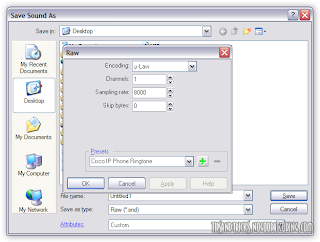
All I did was use GoldWave to snip out parts of an MP3 and save as a Raw (*.snd) file with the attributes you can see in the image. These worked for me but the length of the tone is pretty short. I'll try out some more options to see if it can be longer but I doubt it.
The ringtones are listed in a file named RINGLIST.XML ( you should have got this from the original TFTP server and it should be available in your TFTP server root directory ). It has entries of the form
<Ring>
<DisplayName>Are You There 1</DisplayName>
<FileName>AreYouThere.raw</FileName>
</Ring>
Update the phone
The phone picks up configuration files only when it's booting. So you can either unplug then replug it or use **#** while in the Network Configuration menu.
You should see your TFTP server logging requests for various files, just like before. Only this time, it actually has those files and can serve them up to the phone! Once it's done booting, you should see the logo come up after the default idle timeout ( you can change this too; check the SEP0123456789AB.cnf.xml we modified earlier for <idleTimeout> ).
If you followed my suggestion earlier and used your original XML, you should now replace it with your custom file and refresh the screensaver ( you don't need to restart the phone, you can either select Update or just perform some action, like picking up the handset and putting it back; that interrupts the screensaver and then starts it again ). If everything has been setup correctly, you should see the image you want!
Your ringtone should be listed under Settings > Ring Type > Default Ring. When you choose to Play the file, you should see a request on your TFTP server, for the corresponding .raw audio file. If it's too big or not in the correct format, you'll see errors. If it's acceptable, you'll hear your ringtone play.
Notes and troubleshooting
Samples
- I'm not sure if the phone would pick up something off of the Internet
- Your admin would have proabably restricted access to the Internet from the phone
- The mime-type these servers respond with may not be what the phone expects
The Batman Logo
The Unreal Logo
Ringtones:
The opening notes of the M:I-2 theme
Moby's In My Heart, from the Nokia ad.
You can also get the ringtone of the [Cisco IP] phones from the TV show 24 from here. In case the page is down, you can get the files it linked to from here, here and here.
If you create something that you think others might like, please let me know, I'll link to it in the list above.
Resources
- http://plutor.org/blog/2005/05/05/143338/
- http://blog.johnath.com/index.php/2006/12/05/hacking-the-cisco-79xx-series/
- http://search.cpan.org/~mrpalmer/
- http://www.cisco.com/warp/public/788/AVVID/idle-url.html
- http://www.cisco.com/en/US/docs/voice_ip_comm/cucm/admin/3_0_9/a3rings.html
- http://www.ibm.com/developerworks/wireless/library/wi-voip/
Friday, May 30, 2008
Google Has A New Favicon
Tuesday, May 27, 2008
Cleaning Out ADVIRS.exe, A Relatively Unknown Virus
But now what? We had no idea what virus it was and his updated enterprise edition of McAfee Anti-Virus didn't detect anything ( so much for all that money we pay them! ) and we couldn't run Task Manager to see which suspicious process were running.

Just yesterday, I'd read this article on Slashdot about gaining system privileges in Vista. The comments noted that this was also possible in Windows 2000/XP et al.
I had been planning to try it out and here was a great chance to see if it would work.
Here's the idea: The accessibility utilities, like Magnifier ( C:\WINDOWS\system32\magnify.exe ) and Sticky Keys ( C:\WINDOWS\system32\sethc.exe ) are applications that can be run from the login screen before logging into the computer ( Use Win + U and/or press the Shift key 5 times ). They are started with privileges higher than that of any user, including administrator.
So, to do this, you should :
1. Make a copy of cmd.exe
2. Rename magnify.exe to magnify.exe.bak ( Always backup! )
3. Rename the copy of cmd.exe to magnify.exe
You'll have to do steps 3 pretty quickly because in about 5 odd seconds, Windows realizes that magnify.exe is missing and replaces it! So you could copy the filename and keep it ready and then quickly paste it. It's up to you. The idea is that rename the copy before the original magically reappears.
Back to the anecdote. Once I did this, I then started Magnifier and lo behold! Command Prompt opened up! We could now run tasklist to get a list of running processes and their PIDs. We were luck, my friend immediately spotted two instances of advirs.exe and when we Google'd it, we knew it was the culprit. We used taskkill to end the two processes and then tried running Task Manager and it worked!
Image Name PID Session Name Session# Mem Usage ========================= ====== ================ ======== ============ ADVIRS.exe 3276 Console 0 5,992 K YahooMessenger.exe 4056 Console 0 15,416 K JabberMessenger.exe 3560 Console 0 42,748 K GoogleToolbarNotifier.exe 4028 Console 0 1,060 K ADVIRS.exe 3652 Console 0 5,980 K
RemoteIT was the only antivirus that turned up in the search results for this virus and specifically claimed to clean it. We didn't try it because we'd already got rid of the problem by then but you could give it a shot, in case you're unlucky enough to get infected!
It does seem a pretty simple thing to get rid of though so maybe this wasn't really required. I think if we'd simply renamed a copy of cmd.exe to something else, it would have bypassed the virus' blocks, so you might want to try that first :D
Location: c:\windows\system32\advirs.exe
Registry Key: HKEY_LOCAL_MACHINE\SOFTWARE\Microsoft\Windows\CurrentVersion\Run\Advirs
Saturday, May 17, 2008
Gmail Has A New Loading Page And Now Loads Faster


There also seem to be improvements behind the scene, as this post on the Gmail blog explains.
Thursday, May 1, 2008
Free Stuff For Your Domain
Or What To Do With Your Domain Name, For Free
So you've finally got that really cool domain name you've always wanted; now what? How do you let everyone know how uber-cool you and domain name are? You could give some of these free services that allow you to use custom domains a shot.
I bought my domain almost a year ago. I didn't really have anything specific in mind that I wanted to use the domain for, except perhaps my blog. I didn't want to shell out for hosting or other services that I wasn't really going to use but I also didn't want the domain name to lie idle. So I looked about for free services that I could use. I found only a few and they're listed below (mostly from Google!). The ones that I've not used are starred.
- Google Apps - This is pretty much the best one in the list. It includes a lot of services. You get
- Microsoft Windows Live Admin Center ( formerly Windows Live Custom Domains ) * - Microsoft's answer to Google Apps? You get some Windows Live services for your domain
- Windows Live Hotmail
- Windows Live Messenger
- Windows Live Contacts
- Windows Live Alerts
- Windows Live Photo Gallery
- Windows Live Spaces
- Virtual Earth
- Calendar
This is what I could gather was being offered, the site is a bit confusing as to what exactly is up for use. - Blogger - The http://myblog.blogspot.com URL is, like, so ordinary, dude. Use Blogger's custom domain feature to publish your blog on http://myblog.mydomain.com. Your old BlogSpot URL is still valid, people will simply get redirected from there to the custom domain. ( I've noticed, however, that http://www.myblog.blogspot.com will NOT redirect! ) Blogger also supports redirection of feeds so if you're using the FeedBurner MyBrand service, you could even redirect your Blogger feed to the one published on your custom domain!
- FeedBurner - After Google's acquisition, all the premium features are now free. So you can use the MyBrand service to change your feed address to something like http://feeds.nogoodatcoding.com/nogoodtipsandtricks; much better than http://feeds.feedburner.com/nogoodtipsandtricks, don't you think? Of course, you have to be using FeedBurner to publish your feeds!
- Free Forum Hosting * - I found these sites that offer free phpBB forums with custom domain name support.
- Free-Space.net * - Free website creation and hosting; the pages are shiny!
One more advantage of putting your stuff on a custom domain name is that if you should ever choose to switch providers ( be it email, blogging platform, feed publisher, whatever ), all you need to do is update your domain settings to point that URL to the new host. Your friends and readers need not update anything!
If you know of any other services that can be added to this list, post a comment! I'll add them to the list ( and credit you, of course :D ).
* I've not used these services but the sites seemed to indicate that they were free and had domain customization features.
Monday, April 7, 2008
Yahoo! Messenger Doesn't Login? Check IE Proxy Settings
The other day, I wasn't able to login to Yahoo! Messenger on my company laptop. I fiddled around a bit and finally realized that I had the company proxy set in Internet Explorer. Once I cleared that, everything worked fine.
Yahoo! Messenger has connection options for -
- No proxies
- Use proxies
- No network detection
Tuesday, September 4, 2007
Google Pages Site Sitemap
A little while ago, Charles wrote a post on Google Pages. It is a rather cool service. And here's a cooler fact: it automatically generates a sitemap for you, which you can use for indexing with Google Webmaster Tools or wherever else. If you frequently update, you could even use it as a feed of sorts.
The sitemap file is called, wait for it, sitemap.xml! It won't show up in your 'Uploaded stuff' though ( since you obviously didn't upload it! ) but you can find it at http://your.google.pages.sitename.googlepages.com/sitemap.xml. But here's the worrying part; so can others. It's a public file and you have no control over the contents either. All your files will be listed in it. So for those of you that use the Google Pages space for storage, if it's stuff you don't others to find, don't put it up there. There's even an iGoogle gadget that lets your browse the contents using the sitemap. But of course, you could argue that if it's online, someone could find a way to get it, but there's a difference between leaving your front door open and locking it, knowing that a determined thief could break in anyway.
Apart from sitemap.xml, there’s also an rss.xml. This one is also generated automatically but it contains entries of only your pages, not your uploaded files.
Sunday, August 26, 2007
Finding Your Blogger blogId And postIds
Your Blogger blogId is your blog's unique identification number. You could change your blog URL and name but the blogId remains the same. You can find your Blogger blogId at quite a few places. The first is your blog's HTML source. Search for 'blogId' and you'll find something like
blogID=2091151685457159297
The next place to look is your Blogger Dashboard. If you hover the mouse pointer over the 'Manage' links ( i.e. the links for Edit Posts, Settings and Layout (or Template )), in the status bar, you should be able to see the blogId as part of the URL those links point to. Or you could right-click and select Copy Shortcut ( IE ) or Copy Link Location ( Firefox ). If you've followed any of those links, you'll also be able to see the blogId in your browser's address bar.
Finally, you can also see your blogId on the comments link on your posts. It's part of the URL again, so use the same method as for the Dashboard.
All your posts also have a unique id. The postIds are little harder to find. You can get them from the 'Manage Posts' page ( follow the Edit Posts link from your Dashboard). The Edit link for each post has the postId as part of the URL, you can view it in the status bar or by copying the link to a text-editor.
Similarly, the postId can be found as part of links on your posts, the comments link, the Email Post link among others. In almost all cases, it'll be a parameter called postId in the destination URL. One exception is the Subscribe to: Comments ( Atom ) on the individual post pages, where the postId would be the really long number in the URL. For example:
http://tipsandtricks.nogoodatcoding.com/feeds/6725560071480110191/comments/default
Here, 6725560071480110191 is the postId.
Friday, August 17, 2007
Customizing Mininova RSS Feeds
Mininova offers search-based feeds i.e. RSS feeds that can be generated according to some optional parameters.
Mininova has two basic feed URLS; one is the global RSS feed at http://mininova.org/rss.xml. The second is the RSS feed for a search, found at http://mininova.org/rss/search+terms. Incidentally, I'm a big fan of their 'clean' URLs; very easy to use and very intuitive.
Starting with the global feed, parameters that can be passed are:
- cat : The category of the torrent. For example, 'Movies' are category 4.
- sub : The sub-category. For example, 'Action' movies are sub-category 1 while 'Animation' movies are 29. The sub-categories aren't necessarily in sequential order. Sub-category 2 is 'Trance/ House/ Dance' under the 'Music' category.
- user : The user name. For example, 'aXXo'. Case-insensitive, so you could use 'axxo' or 'AXXO'.
- num : The number of results you want returned. The default count is 20 items.
- direct : This is a new addition and doesn't take a value. It replaces the link of the feed item with the actual download URL ( you know, the one you see stating 'Download this torrent!' ) so that when you click on it, the download starts instead of you being taken to the 'General Information' page of the torrent.
- cat takes precedence over the others
- user is ignored if either cat or sub is used
- direct can be used with any of the others, either as the first parameter ( ?direct ) or at the end ( ?cat=1&direct )
- Spaces are replaced by +'s
- You can filter a category by simply adding the category number at the end of the URL like http://mininova.org/rss/search+terms/2
- Sub-categories don't seem to work, I was getting weird results with URLs like http://mininova.org/rss/search+terms?sub=35 or http://mininova.org/rss/search+terms?cat=35
Saturday, July 28, 2007
Basic Authentication For XDB Realm With Tomcat
The problem is that by default, Oracle listens at port 8080. And coincidentally, so does Tomcat, with default settings! And so, if you start Oracle first and Tomcat after, port 8080 is already in use when Tomcat tries to bind to it. In fact, if you look at the console or the logs, you'll see an error which says something like
Address already in use:JVM_BIND 8080
The solution is simple: change the port that Tomcat listens on. This is assuming, of course, you want to use Oracle also. You could just get rid of it :D.
Changing the port is simple. You'll find lots of detailed explanations if you Google'ed for it. But to give it in short, open $CATALINA_HOME/conf/server.xml and look for a line which starts with
<Connector port="8080"
Wednesday, July 25, 2007
Escape Character In Microsoft SQL Server 2000
I finally managed to discover that the escape character is, in fact, the single quote itself! So to insert a string with a single quote in it, you need to use an SQL query like:
INSERT INTO mytable ( randomstring) VALUES ( 'Where''s the answer?' )